La prise en charge de Dolby Vision en IPTV est une question véritablement pratique qui va au-delà de simplement comprendre ce qu'est Dolby Vision techniquement — il s'agit de savoir si votre configuration spécifique, de bout en bout, peut réellement le fournir. Ce guide se concentre sur ce côté pratique : ce qui doit être vrai à chaque étape pour que Dolby Vision atteigne réellement votre écran, comment savoir s'il fonctionne, et pourquoi c'est moins courant sur les chaînes IPTV en direct que ce à quoi vous pourriez vous attendre d'après le marketing d'un téléviseur premium.
Pour une explication technique plus approfondie de ce que Dolby Vision fait différemment des autres formats HDR, voir notre guide explicatif Dolby Vision et notre comparatif HDR10 vs Dolby Vision — cet article suppose cette base et se concentre spécifiquement sur la compatibilité IPTV.
Ce que requiert réellement la prise en charge de Dolby Vision en IPTV
Dolby Vision ne fonctionne de bout en bout que si chaque maillon de la chaîne de diffusion le prend en charge — un seul maillon non pris en charge quelque part en chemin signifie que vous ne verrez pas Dolby Vision, même si tout le reste en est capable.
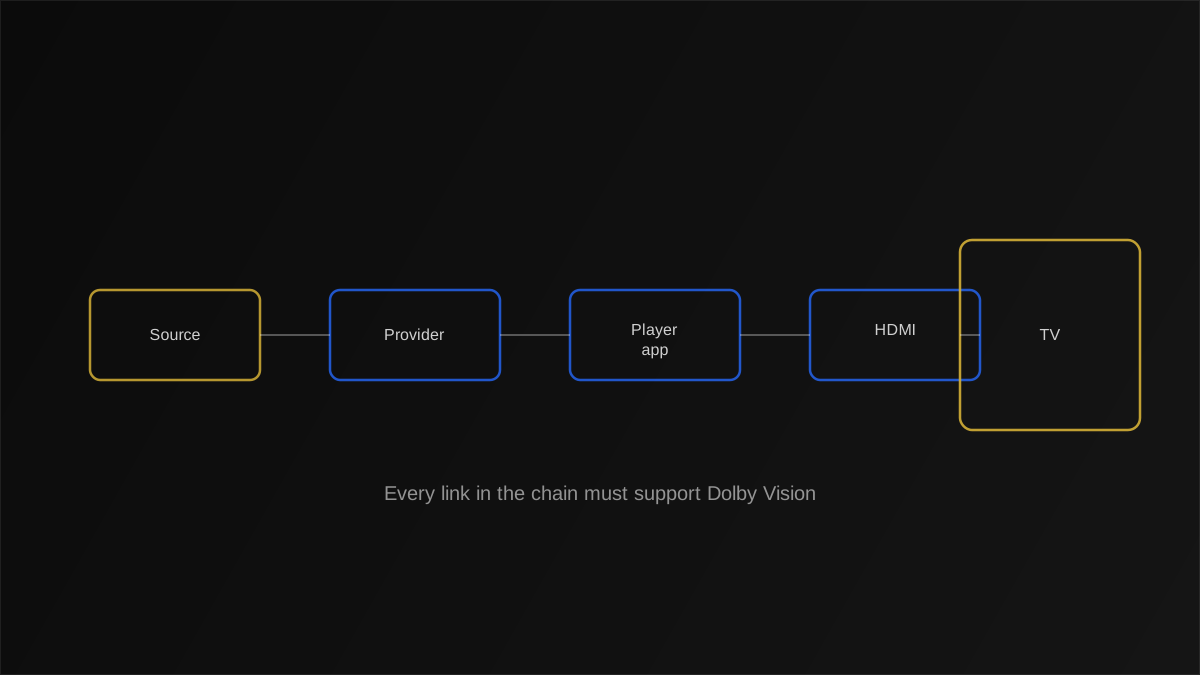
Le contenu source lui-même
La chaîne ou le titre à la demande doit réellement être masterisé en Dolby Vision par le créateur de contenu. Aucune quantité de matériel capable en aval ne peut ajouter Dolby Vision à un contenu qui n'a jamais été masterisé avec dès le départ.
Le pipeline d'encodage de votre fournisseur IPTV
Le processus de transcodage du fournisseur doit préserver les métadonnées Dolby Vision plutôt que de les supprimer pendant la compression — certains pipelines d'encodage, particulièrement ceux optimisés pour l'efficacité de la bande passante sur de nombreuses chaînes, abandonnent par défaut les métadonnées HDR dynamiques.
Votre application lecteur
L'application décodant le flux doit reconnaître et transmettre les métadonnées Dolby Vision à la sortie vidéo de votre appareil, plutôt que de les traiter comme du HDR10 standard ou d'ignorer entièrement les métadonnées.
Votre appareil et la connexion HDMI
Le matériel de votre appareil de streaming ou Smart TV doit prendre en charge le décodage Dolby Vision, et si vous utilisez un boîtier de streaming externe, la connexion HDMI elle-même doit généralement être HDMI 2.0a ou ultérieure — voir notre guide HDMI 2.1 pour les considérations de bande passante connexes pertinentes pour les formats HDR en général.
Astuce
Si un seul maillon de cette chaîne ne prend pas en charge Dolby Vision, la plupart des configurations reviennent tranquillement au HDR10 standard ou au SDR plutôt que d'échouer purement et simplement — c'est pourquoi « pas d'erreur, juste pas de Dolby Vision » est le symptôme le plus courant, pas un plantage ou un message d'erreur visible.
Comment vérifier chaque appareil de votre configuration pour la prise en charge de Dolby Vision
Vérifier votre boîtier ou clé de streaming
Les pages de spécifications du fabricant listent généralement Dolby Vision explicitement, séparément du support « HDR » générique — les deux ne sont pas interchangeables, puisqu'un appareil peut prendre en charge le HDR10 standard sans prendre en charge le format sous licence de Dolby Vision du tout. Si la fiche technique ne mentionne que « HDR » sans nommer Dolby Vision spécifiquement, considérez cela comme une indication qu'il n'est pas pris en charge.
Vérifier votre Smart TV
La plupart des téléviseurs compatibles Dolby Vision affichent le logo Dolby Vision quelque part sur leur emballage, fiche technique, ou menu de paramètres. Dans les paramètres d'image du téléviseur, une option de mode d'image « Dolby Vision » dédiée, distincte d'un mode « HDR » générique, est un signe fiable de prise en charge.
Vérifier votre application lecteur
C'est le maillon le moins visible de la chaîne, et souvent le plus négligé. Certaines applications documentent explicitement la prise en charge du passthrough Dolby Vision dans leur liste de fonctionnalités ou menu de paramètres ; d'autres ne mentionnent tout simplement pas du tout la gestion du HDR, ce qui est en soi un signal utile, quoiqu'indirect, que la prise en charge dédiée de Dolby Vision n'est probablement pas une priorité pour cette application spécifique.
Astuce
Lors de la comparaison d'applications lecteur spécifiquement pour la prise en charge de Dolby Vision en IPTV, recherchez une mention explicite de « passthrough Dolby Vision » ou « passthrough de métadonnées » dans les paramètres ou la documentation de l'application, plutôt que de supposer que la prise en charge HDR générale la couvre.
Pourquoi Dolby Vision est moins courant sur les chaînes IPTV en direct spécifiquement
Même avec du matériel entièrement compatible tout au long de votre configuration, la prise en charge de Dolby Vision en IPTV dépend fortement de la disponibilité du contenu — et les chaînes en direct sont bien moins susceptibles d'être masterisées en Dolby Vision que les films et séries premium à la demande. Dolby Vision nécessite des frais de licence et un processus de masterisation certifié plus facile à justifier pour une sortie de film ponctuelle que pour du contenu de diffusion en direct généré en continu. La plupart des chaînes IPTV en direct qui prennent en charge le HDR utilisent par défaut le HDR10 standard, étant donné sa compatibilité plus large et sa barrière d'implémentation plus basse, comme couvert dans notre comparatif HDR10 vs HDR10+.
Remarque
Ne supposez pas qu'un badge « Dolby Vision » sur votre téléviseur signifie que chaque chaîne IPTV que vous regardez le diffuse — le badge indique la capacité de votre écran, pas dans quel format un contenu spécifique est réellement masterisé.
Comment savoir si Dolby Vision en IPTV est réellement actif
- Vérifiez l'indicateur à l'écran de votre téléviseur, généralement affiché brièvement au démarrage de la lecture ou accessible via une superposition d'informations de mode d'image.
- Recherchez un changement automatique de mode d'image — de nombreux téléviseurs basculent automatiquement vers un mode d'image « Dolby Vision » ou « Cinéma » spécifiquement lorsque du contenu Dolby Vision est détecté.
- Comparez le même contenu sur différents appareils si disponible — une différence visible dans le traitement de l'image entre un appareil compatible Dolby Vision et un qui ne l'est pas est une confirmation pratique.
Avantages et inconvénients de privilégier Dolby Vision pour l'IPTV
| Considération | Avantages | Inconvénients |
|---|---|---|
| Pour l'IPTV spécifiquement | Excellente qualité d'image quand toute la chaîne le prend en charge | Rarement disponible sur les chaînes en direct ; nécessite que chaque maillon coopère |
| Pour le contenu à la demande | Plus couramment masterisé, avantage plus constant | Dépend toujours de la prise en charge complète par votre appareil et application |
Dolby Vision Profile 5 vs Profile 8 : pourquoi cela peut compter pour l'IPTV
Dolby Vision n'est pas un format uniforme unique — il est implémenté à travers plusieurs « profils » techniques différents, et deux valent la peine d'être connus spécifiquement dans un contexte de streaming. Le Profile 8 est rétrocompatible, ce qui signifie que le flux transporte aussi une couche de base HDR10 standard aux côtés de la couche d'amélioration Dolby Vision, donc un appareil sans prise en charge Dolby Vision affiche quand même une image HDR10 correcte plutôt que rien du tout. Le Profile 5, utilisé davantage dans certains contextes hérités, manque de cette couche de repli HDR10, ce qui signifie qu'un appareil non compatible Dolby Vision peut ne pas afficher le HDR correctement du tout en recevant du contenu Profile 5.
Pour l'IPTV spécifiquement, cette distinction compte car elle affecte ce qui se passe sur les appareils non-Dolby Vision regardant le même contenu : le comportement de repli du Profile 8 est bien plus indulgent, ce qui explique en partie pourquoi il est devenu le profil le plus courant pour la diffusion en streaming en général, y compris tout contenu Dolby Vision limité qui apparaît sur les plateformes IPTV.
Dépannage lorsque Dolby Vision en IPTV ne fonctionne pas
L'image semble correcte mais aucun indicateur Dolby Vision n'apparaît
Cela signifie le plus souvent que le contenu lui-même n'est pas masterisé en Dolby Vision, ou que le pipeline d'encodage de votre fournisseur a supprimé les métadonnées pendant le transcodage — aucun des deux n'est réparable de votre côté.
Dolby Vision fonctionnait avant mais s'est arrêté
Vérifiez une mise à jour récente d'application ou de firmware d'appareil qui aurait pu changer la gestion du HDR, et confirmez que votre câble et port HDMI n'ont pas changé — voir notre guide HDMI pour les exigences de câble.
L'image semble délavée ou aux couleurs étranges
Cela peut indiquer un échec partiel de la poignée de main — votre téléviseur a détecté les métadonnées Dolby Vision mais ne les affiche pas correctement. Essayez de désactiver puis réactiver les paramètres HDR de votre téléviseur, ou de changer de port HDMI.
Erreur courante
Supposer qu'un indicateur Dolby Vision manquant signifie que quelque chose est cassé. Dans la plupart des cas, cela signifie simplement que ce contenu spécifique n'a pas été masterisé en Dolby Vision au départ — un problème de disponibilité de contenu, pas un défaut technique.
Considérations de bande passante pour Dolby Vision en IPTV
Les métadonnées dynamiques supplémentaires de Dolby Vision ajoutent une petite quantité de surcharge par rapport au HDR10 standard, bien que la différence soit modeste par rapport au débit binaire global du flux. La considération de bande passante la plus significative est que le contenu Dolby Vision est généralement associé à une masterisation 4K de meilleure qualité, donc l'exigence pratique de bande passante reflète généralement la résolution 4K sous-jacente plus que les métadonnées Dolby Vision elles-mêmes — voir notre guide de qualité de streaming 4K vs 1080p pour ces chiffres de référence, et ajoutez une marge modeste si du contenu Dolby Vision est impliqué.
Une connexion qui a déjà du mal avec le streaming 4K standard aura des difficultés égales, ou légèrement supérieures, avec le contenu Dolby Vision 4K — les exigences de résolution et de débit binaire général dominent le tableau de la bande passante bien plus que le format HDR superposé.
Exemple concret : vérifier un nouveau boîtier de streaming pour la compatibilité Dolby Vision
- Confirmez que la fiche de spécifications du boîtier de streaming liste explicitement la prise en charge du décodage Dolby Vision, pas seulement le support « HDR » général.
- Confirmez que votre application lecteur de choix prend en charge la transmission des métadonnées Dolby Vision plutôt que de tout convertir en HDR10.
- Testez avec du contenu dont vous savez déjà qu'il est masterisé en Dolby Vision, plutôt qu'une chaîne en direct aléatoire, pour isoler si la chaîne matérielle fonctionne du tout.
- Une fois confirmé fonctionnel sur du contenu connu, traitez l'absence de Dolby Vision sur une chaîne en direct comme une question de disponibilité de contenu, pas un problème de configuration.
Termes sémantiques à connaître
Des termes comme métadonnées dynamiques, HDR, et transcodage sont couverts dans notre glossaire des termes de streaming et notre glossaire IPTV complet, un contexte utile pour comprendre cette chaîne de compatibilité complète.
Points clés à retenir
- La prise en charge de Dolby Vision en IPTV nécessite que chaque maillon de la chaîne — source, fournisseur, application, appareil, et écran — le prenne en charge simultanément.
- Les chaînes IPTV en direct sont bien moins susceptibles d'être masterisées en Dolby Vision que le contenu premium à la demande, quelle que soit la capacité de votre matériel.
- Un indicateur Dolby Vision manquant signifie généralement une disponibilité de contenu, pas une configuration cassée.
- Le repli silencieux du matériel compatible vers le HDR10 ou le SDR, sans erreur, est le comportement attendu et normal lorsqu'un maillon manque.
Conclusion
La prise en charge de Dolby Vision en IPTV se résume à une règle simple mais stricte : chaque étape de la chaîne, de la masterisation jusqu'à votre écran, doit coopérer. Comprendre cela facilite grandement l'établissement d'attentes réalistes — et diagnostiquer correctement un indicateur Dolby Vision manquant comme une question de contenu plutôt que de supposer que votre matériel ou abonnement est en quelque sorte fautif.
À explorer sur IPTVLinux