Jitter is one of the most misunderstood terms in home networking — often confused with latency or lumped in as "just another speed problem." In reality, jitter is a distinct, measurable thing: the variation in delay between data packets, rather than the delay itself. Understanding jitter specifically, separate from raw speed, explains a genuinely common streaming symptom: a connection that tests "fast enough" on paper but still stutters unpredictably during live IPTV playback.
This guide explains what jitter actually is, why it disrupts streaming more than raw speed suggests it should, and the specific, practical steps that reduce it.
Definition
Network jitter is the variation in latency between data packets over time, measured in milliseconds. It is also called packet delay variation and is formally defined in IETF RFC 3393.
What is jitter, exactly?
Jitter is the variation in latency over time — how inconsistent the delay between data packets is, rather than the delay itself. Two connections can have the exact same average latency and feel completely different if one delivers that latency consistently and the other swings unpredictably between fast and slow.
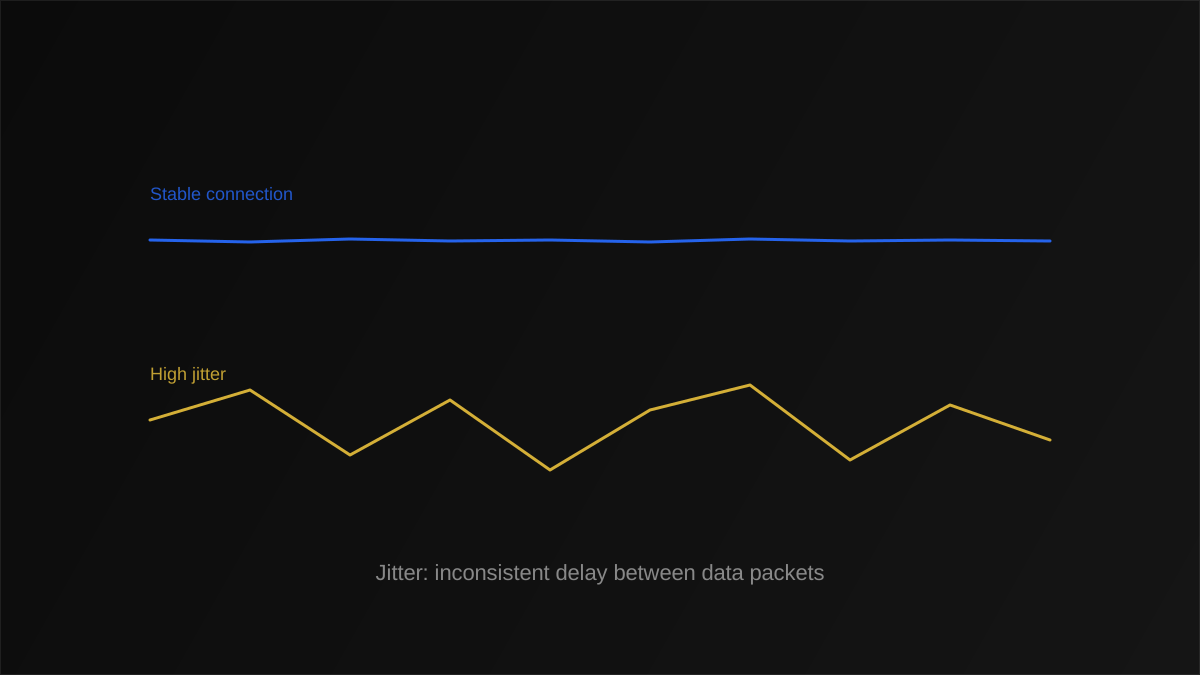
Jitter vs. latency: the key distinction
Latency is a single number — the time it takes data to travel from one point to another and back. Jitter is a measure of variation across many such measurements. A connection with 40ms latency and low jitter delivers data at a steady, predictable 40ms rhythm. A connection with the same 40ms average latency but high jitter might swing between 15ms and 90ms unpredictably — and it's that unpredictability, not the average, that causes visible problems.
Why streaming is especially sensitive to jitter
Adaptive streaming protocols like HLS rely on a steady, predictable rate of incoming data to keep a buffer topped up smoothly. High jitter disrupts that steady rhythm — even if the average throughput is fine, packets arriving in unpredictable bursts and gaps make it harder for your player app to maintain a consistently full buffer, which is what actually causes the stutter, not a lack of raw bandwidth.
Jitter vs. latency vs. bandwidth: how they differ
| Metric | What it measures | Typical streaming symptom when poor |
|---|---|---|
| Bandwidth | Maximum data moved per second | Forced quality drops, slow initial load |
| Latency | Round-trip delay for a single packet | Slow channel changes, sluggish response |
| Jitter | Variation in that delay over time | Uneven stutter despite otherwise fine speed |
This is why a household can run a speed test showing perfectly adequate bandwidth and still experience frustrating, unpredictable stutter — the speed test measured throughput, not consistency. See our guide to running an accurate speed test for how to check jitter specifically, not just download speed.
Tip
Most speed test tools report jitter alongside download and upload speed, usually in milliseconds — a result consistently under about 30ms is generally good for streaming, while anything regularly above 50ms is worth investigating.
How much jitter is acceptable? Good, average and poor values
There is no official standard for "good" jitter, so treat the ranges below as a practical guideline for live IPTV rather than a fixed specification. They are consistent with the general thresholds elsewhere in this guide, and the right number for you also depends on your player's buffer and how many devices share the connection:
| Measured jitter | Rating for streaming | What to expect |
|---|---|---|
| Under 5 ms | Excellent | No jitter-related stutter; typical of a wired connection |
| 5-15 ms | Good | Comfortably absorbed by a normal player buffer |
| 15-30 ms | Acceptable | Usually fine for streaming, with little headroom left for congestion |
| 30-50 ms | Marginal | Occasional stutter likely, especially with several active devices |
| Over 50 ms | Poor | Frequent stutter and rebuffering regardless of raw speed |
Real-time uses are stricter: interactive gaming and VoIP calls generally want jitter under 20-30ms, while a well-buffered IPTV stream can tolerate brief spikes a little higher because it plays from a few seconds of already-downloaded video. If your jitter sits consistently above 50ms, treat it as the primary suspect for buffering before upgrading your internet plan.
How your player app's buffer absorbs jitter — up to a point
Every streaming player maintains a small buffer of already-downloaded video ahead of what's currently playing, precisely to absorb minor timing inconsistencies like jitter without any visible interruption. When jitter is low, this buffer stays comfortably full and playback looks perfectly smooth even though individual packets are still arriving at slightly different intervals. As jitter increases, the buffer has to work harder to smooth out the inconsistency, and once jitter exceeds what the buffer can reasonably absorb, you start seeing the visible stutter or brief freezes that prompted you to start troubleshooting in the first place.
This is a useful mental model: jitter itself is often present on every connection to some small degree, and it only becomes a visible problem once it exceeds your specific setup's buffering capacity. A slightly larger buffer can mask moderate jitter, which is why two viewers with identical jitter measurements sometimes report very different real-world experiences depending on their player app's buffer settings.
Measuring jitter yourself with a ping test
Beyond a standard speed test's jitter figure, you can get a more detailed picture using a simple ping test, available built into most operating systems. Running repeated pings to a stable target and comparing the response times reveals jitter directly — a tight, consistent cluster of response times indicates low jitter, while wildly varying response times, even with a similar average, indicates high jitter. This is a genuinely useful diagnostic step before and after making a change, like switching to Ethernet or enabling QoS, since it gives you a concrete before-and-after number rather than relying purely on subjective impressions of whether streaming "feels" smoother.
Jitter on mobile and cellular connections versus home broadband
Jitter tends to be structurally higher on cellular and mobile hotspot connections than on a stable home broadband connection, simply because mobile networks contend with more variable signal conditions, tower handoffs, and shared capacity with other nearby users. This is worth knowing if you occasionally stream IPTV over a mobile hotspot as a backup — some degree of stutter in that scenario may reflect inherent mobile network jitter rather than anything wrong with your streaming setup itself, and reducing expectations accordingly, or dropping to a lower quality tier manually, can produce a more consistent viewing experience than fighting for full quality on an inherently more variable connection.
Why jitter matters more for live IPTV than for video calls
Interestingly, video calling applications are often more jitter-tolerant than live IPTV streaming, since they're specifically engineered to handle real-time, low-latency communication where a small dropped frame is preferable to added delay. Streaming protocols, by contrast, prioritize consistent picture quality over absolute minimum latency, using a larger buffer that's more effective at absorbing jitter but takes longer to recover once that buffer is depleted by a sustained period of high jitter. This is why a connection that handles video calls perfectly well can still produce visibly stuttering IPTV playback — the two types of traffic have different tolerances for the same underlying network inconsistency.
What causes network jitter
On a home network, high jitter almost always traces back to one of these causes:
- Wi-Fi interference and congestion — the single most common cause in home networks, since wireless signals are inherently more variable than a wired connection.
- Network congestion from other devices competing for bandwidth at the same time, causing inconsistent packet delivery.
- Outdated or underpowered router hardware struggling to process traffic consistently under load.
- ISP-side network congestion, particularly during evening peak hours, outside your direct control.
How to reduce jitter for smoother IPTV streaming
Switch to a wired Ethernet connection
This is the single most effective fix for jitter, since it removes wireless interference entirely. See our Ethernet vs Wi-Fi comparison for the full case.
Enable Quality of Service (QoS) on your router
QoS prioritizes streaming traffic during congestion, smoothing out the inconsistent delivery that causes jitter — our router settings guide covers exact configuration steps.
Reduce the number of active devices during streaming
Large downloads or video calls running simultaneously introduce competing traffic that increases jitter for everything else on the network.
Optimize your broader home network setup
Our home network optimization guide covers router placement, band separation, and other structural changes that reduce jitter alongside other network issues.
Note
A larger player app buffer can absorb some jitter without visible stutter, though it doesn't fix the underlying inconsistency — see our buffer size guide for how this trade-off works.
Jitter in multi-device households
Jitter tends to worsen as more devices actively compete for the same network resources, since each additional stream, download, or video call introduces more variable, overlapping traffic patterns for your router to manage. A household streaming on a single device often reports lower jitter than the same household with three or four devices simultaneously active, even on a connection with more than enough raw bandwidth to cover all of them individually. This is a distinct problem from simply running out of bandwidth — it's about consistency under contention, which is exactly what QoS is designed to help manage by giving streaming traffic priority when multiple devices are competing at once.
Common mistakes when troubleshooting jitter
- Assuming a fast speed test result rules out jitter — the two measure different things entirely.
- Upgrading your internet plan when the real issue is Wi-Fi interference a wired connection would fix for free.
- Ignoring router placement, one of the most common overlooked causes of inconsistent Wi-Fi delivery.
Common mistake
Treating every instance of buffering as a bandwidth problem. If your speed test shows healthy throughput but stutter persists, check jitter specifically before assuming you need a faster plan.
Real-world example: diagnosing stutter that a speed test didn't explain
- A subscriber runs a standard speed test showing 150 Mbps download — far above what streaming requires.
- Live IPTV channels still stutter unpredictably every few minutes, despite the healthy speed result.
- They re-run the same test checking the jitter figure specifically, finding it consistently above 60ms on Wi-Fi.
- Switching the primary streaming device to a wired Ethernet connection drops jitter to under 10ms.
- The stutter disappears entirely, confirming jitter — not bandwidth — was the actual cause all along.
This pattern is common enough that it's worth checking jitter specifically any time buffering persists despite an otherwise healthy speed test result.
Semantic terms worth knowing
Jitter is closely related to latency and buffering — our streaming terms glossary and full IPTV glossary define these related concepts together. For the formal technical definition, the Wikipedia entry on jitter and IETF RFC 3393, which formally defines IP packet delay variation, are solid authoritative references.
Key takeaways
- Jitter is the variation in latency over time, not the delay itself — a distinct metric from both bandwidth and latency.
- High jitter causes uneven stutter even when a speed test shows healthy bandwidth.
- A wired Ethernet connection is the single most effective fix, since it removes wireless interference.
- QoS and general home network optimization both help reduce jitter alongside other network issues.
Conclusion
Jitter explains a specific, common streaming frustration that a simple speed test can't diagnose on its own: a connection that looks fast but still stutters unpredictably. Checking jitter specifically, rather than assuming every buffering issue is a bandwidth problem, points you toward the right fix — usually a wired connection or a QoS-enabled router — far faster than repeatedly upgrading your internet plan and hoping the problem goes away.