IPTV playlists are the file or link that tells your player app which channels and video-on-demand titles exist and where to find them. In practice, most providers hand you an IPTV M3U link — a plain-text playlist URL — to paste directly into your player app. Every IPTV service, no matter how polished its app looks, ultimately depends on a playlist behind the scenes — understanding how these playlists work makes it dramatically easier to troubleshoot problems, compare providers, and choose the right player app for your setup.
This guide walks through the major IPTV playlist formats in plain language, compares them directly, and gives you practical guidance for keeping playlists organized, fast-loading, and reliable throughout 2026.
What are IPTV playlists, exactly?
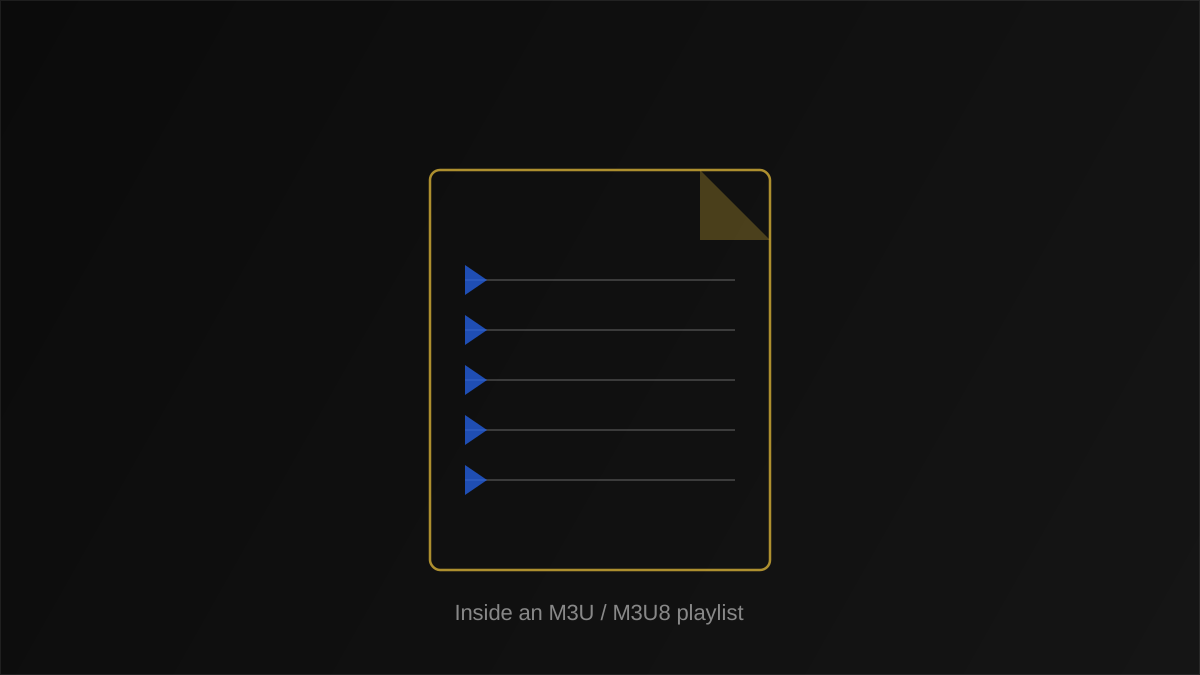
At the simplest level, IPTV playlists are structured text files (or dynamically generated equivalents) listing stream URLs alongside metadata like channel name, logo, and category. Your player app downloads or refreshes this list, parses it, and builds the channel guide you actually browse. Without a valid playlist, an IPTV player app is just an empty shell with nothing to display.
Why IPTV playlists matter more than most viewers realize
Two subscribers using the exact same underlying IPTV service can have very different experiences purely based on how their IPTV playlists are structured, organized, and refreshed. A bloated, poorly-categorized playlist with thousands of dead entries feels sluggish and cluttered, while a clean, well-maintained one feels instant and organized — even though the actual video streams behind both could be identical.
How a player app actually uses an IPTV playlist
When you enter a playlist URL or upload a file, your player parses every line, extracts channel names and stream links, groups entries by category tags if present, and caches the result locally. From that point forward, tapping a channel simply looks up its stored URL and begins playback — the playlist itself is not re-fetched for every single channel change, only on a scheduled refresh or manual reload.
The major IPTV playlist formats compared
Three formats dominate the IPTV world today: M3U, the near-identical M3U8, and the Xtream Codes API format. Each has genuine strengths depending on how it's used.
| Format | Structure | Typical use | Update method |
|---|---|---|---|
| M3U | Plain text, one entry per stream | Universal, works in almost any player | Re-download full file |
| M3U8 | M3U variant referencing HLS segments | Adaptive-bitrate streaming | Re-download full file |
| Xtream Codes API | Dynamic API, not a static file | Provider-managed panels with EPG built in | Live, on-demand queries |
For the deepest technical breakdown of the two most common file-based options, see our dedicated M3U playlist explainer and M3U8 format guide.
M3U: the universal baseline
M3U is a plain-text format, originally designed for audio playlists and later adopted broadly across IPTV. Its simplicity is its biggest strength — virtually every player app on every platform can parse an M3U file, making it the safest default when compatibility matters more than advanced features. The tradeoff is that M3U carries only basic metadata, without native support for time-shifted playback or richer VOD catalogs.
M3U8: built for adaptive streaming
M3U8 looks nearly identical to M3U but is specifically structured to work with HTTP Live Streaming (HLS), referencing segmented video chunks at different bitrates. This is what enables your player to automatically step down quality when your connection weakens, rather than freezing outright — a meaningful advantage for IPTV playlists used on inconsistent networks.
Xtream Codes: dynamic and feature-rich
Rather than a static file, the Xtream Codes format is a live API your player queries directly, typically requiring a server URL, username, and password instead of a playlist link. It commonly bundles EPG data, VOD categories, and series information into one connection, which is why many modern IPTV player apps favor it for a more complete, catch-up-enabled experience.
Tip
If your provider offers both an M3U link and Xtream Codes credentials, Xtream Codes generally gives a richer experience — EPG, VOD, and series browsing — while M3U remains the more universally compatible fallback.
Understanding EPG data inside IPTV playlists
Electronic Program Guide (EPG) data is what populates the "what's on now / what's on next" information you see layered over live channels. It is not always bundled directly inside an IPTV playlist — often it's a separate XMLTV feed your player merges with the channel list based on matching channel IDs. Our EPG explained guide covers this in full detail, including how mismatched channel IDs cause guide data to silently fail to appear.
Why EPG mismatches are a common playlist headache
If your IPTV playlist labels a channel "USA-CNN-HD" but the EPG source labels the same channel "CNN.us", most players won't automatically connect the two, leaving that channel with a blank guide despite working video. Providers who maintain both feeds carefully avoid this, but it remains one of the more common frustrations viewers report.
Note
A missing EPG does not mean your IPTV playlist or subscription is broken — live playback and guide data are handled by separate systems that simply didn't sync correctly.
Pros and cons of file-based versus API-based playlists
| Approach | Pros | Cons |
|---|---|---|
| File-based (M3U/M3U8) | Simple, portable, widely compatible | Manual updates, limited metadata |
| API-based (Xtream Codes) | Rich features, auto-updating catalog | Requires compatible player, more setup fields |
Loading and managing your IPTV M3U playlist correctly
Getting an IPTV playlist into your player app correctly is usually the difference between a smooth first impression and unnecessary troubleshooting.
- Copy the full URL exactly, including any parameters after a question mark — truncating it is a leading cause of "playlist failed to load" errors.
- Avoid opening the URL in a browser first unless your provider explicitly supports it; some links are meant only for player app consumption.
- Set a sensible auto-refresh interval so channel additions and removals appear without manual re-entry.
- Keep credentials private — Xtream Codes URLs typically embed your username and password directly.
Warning
Never share your IPTV playlist URL or Xtream Codes credentials publicly — anyone with the link can typically stream on your connection, sometimes triggering account suspension for exceeding simultaneous-stream limits.
Choosing a player app for your IPTV playlists
Not every player app supports every format equally well. Our VLC media player guide and guide to opening network streams in VLC cover the most universal file-based option, while dedicated IPTV apps often add native Xtream Codes support, catch-up TV, and multi-screen layouts that generic players lack.
General-purpose players versus dedicated IPTV apps
General-purpose players like VLC excel at raw compatibility — if a stream plays anywhere, it likely plays in VLC. Dedicated IPTV apps trade some of that universality for a purpose-built interface: EPG grids, favorites, parental controls, and catch-up all designed specifically around how IPTV playlists are structured.
Common IPTV playlist problems and what causes them
- Playlist won't load — usually an expired link, typo, or temporary server-side issue on the provider's end. Our dedicated troubleshooting checklist walks through every likely cause in order.
- Channels play but show no logos — the playlist references logo URLs that are broken, blocked, or slow to load.
- Some channels missing after refresh — the provider reorganized categories or retired specific streams.
- Duplicate channels appearing — often from merging multiple playlist sources without deduplication.
For live playback issues that persist after confirming your IPTV playlist itself is valid, our broader streaming troubleshooting guide covers network and device-level causes in depth.
How often IPTV playlists should be refreshed
Most providers rebuild their underlying channel data continuously, but your local player only reflects those changes after a refresh. A daily automatic refresh is a reasonable default for most IPTV playlists — frequent enough to catch new channels or EPG corrections, without needlessly re-downloading a large file every few minutes. Some apps allow manual refresh as well, useful immediately after your provider announces a lineup change.
Real-world example: setting up a new IPTV playlist from scratch
- Your provider emails an Xtream Codes server address, username, and password.
- You open your chosen player app and select "Add playlist via Xtream Codes" (or the equivalent option).
- You paste in the three credentials exactly as provided, avoiding extra spaces.
- The app connects, downloads the current channel list, VOD catalog, and EPG data in one pass.
- You browse categories to confirm channels load, then set your preferred auto-refresh schedule.
This entire process typically takes under two minutes once you have valid credentials in hand — most of the remaining setup time, if any, goes toward organizing favorites rather than troubleshooting the playlist connection itself.
How playlist size affects loading speed and performance
A commonly overlooked factor in how "fast" an IPTV service feels is simply how large the underlying IPTV playlist has become. A lean playlist with a few thousand well-organized entries parses almost instantly on modern hardware, while a bloated one carrying tens of thousands of duplicate, dead, or rarely-used entries can noticeably slow down the initial load, especially on older streaming boxes with limited processing power and memory. This is one reason two providers offering what looks like a similar channel count on paper can feel completely different in day-to-day use.
Category organization compounds this effect. A playlist that groups channels sensibly by region and genre lets your player app render a manageable list of folders instead of one enormous flat scroll, which both loads faster and feels more usable. If you've ever wondered why a provider's app feels sluggish specifically when opening the channel list — as opposed to during actual playback — an oversized or poorly categorized IPTV playlist is very often the real explanation, not a network or hardware problem at all.
Practical steps to keep a large playlist manageable
If you maintain your own merged or custom IPTV playlist, periodically auditing it for dead links, removing channels you never actually watch, and consolidating near-duplicate categories keeps load times snappy over the long run. Most dedicated playlist editor tools include a "test all links" function that flags entries returning errors, making this maintenance pass considerably less tedious than checking each stream manually.
IPTV playlists on mobile devices versus desktop and TV apps
The same underlying IPTV playlist behaves slightly differently depending on where it's loaded. Mobile apps often apply more aggressive caching and lazy-loading to conserve battery and data, sometimes only fully parsing the categories you actually open rather than the entire file at once. Desktop and TV-based players, with more available memory and a stable power source, more commonly parse the full playlist upfront, trading a marginally longer initial load for instant category switching afterward.
This difference matters most when troubleshooting: if a particular channel plays fine on your Smart TV app but seems to be missing entirely on your phone, the issue is sometimes a mobile app's caching behavior rather than the playlist itself being faulty — clearing the app's cache and forcing a fresh playlist reload often resolves it without any changes needed on the provider's side.
Backing up and version-controlling a custom IPTV playlist
For anyone investing real effort into curating or merging IPTV playlists, keeping a dated backup before making significant edits is a simple habit that saves considerable frustration. A single accidental overwrite or a bad merge can undo hours of careful categorization work, and unlike a provider-hosted playlist, a self-maintained file has no built-in recovery option unless you've kept one yourself. Storing a versioned copy in cloud storage, or simply appending a date to the filename before each major edit, provides a reliable safety net at essentially no cost.
Building and hosting your own IPTV playlist
Some advanced users build custom IPTV playlists by combining legal, freely available streams, or by merging multiple provider feeds into one organized file. Doing this correctly means respecting the M3U specification's formatting rules precisely — a single malformed line can cause an entire playlist to fail parsing in stricter player apps. Community-maintained specifications and reference implementations, such as those documented on Wikipedia's M3U format page, are a reliable starting point for understanding the exact syntax expected.
Deduplicating and cleaning a merged playlist
When combining sources, duplicate channel entries are almost inevitable. Most playlist editor tools can detect duplicate stream URLs automatically, but duplicates with slightly different names for the same underlying channel require manual review — an unglamorous but worthwhile step for keeping a merged IPTV playlist genuinely usable rather than cluttered.
Evaluating a provider by the quality of its IPTV playlists
When comparing providers, most people focus entirely on channel count and price, overlooking a factor that has an outsized effect on daily satisfaction: how well-maintained the underlying IPTV playlist actually is. A provider that promptly removes dead channels, keeps categories logically organized, and syncs EPG data reliably delivers a noticeably better experience than one offering a larger raw channel count wrapped around a neglected, cluttered playlist. If you're evaluating a new provider, a short trial period spent simply browsing the full category list — checking for duplicates, broken entries, and sensible organization — tells you more about long-term reliability than the marketing page ever will.
It's also worth asking, before committing, how frequently a provider rebuilds and republishes its playlist data. Services that update multiple times daily tend to reflect channel changes and EPG corrections far faster than ones that rebuild only once every few days, a difference you'll notice most right after a channel lineup change or a live event schedule shift.
The direction IPTV playlists are heading
File-based formats like plain M3U aren't disappearing anytime soon, given how deeply embedded they are across countless player apps, but the broader trend clearly favors dynamic, API-driven approaches like Xtream Codes that bundle EPG, VOD, and live channels into a single managed connection. This shift mirrors a wider pattern across streaming technology generally: moving away from static files that require manual maintenance, toward live, continuously-updated data sources that stay accurate without user intervention. Expect newer player apps to increasingly treat static playlist files as a compatibility fallback rather than the primary connection method, even as M3U itself remains a useful, portable standard for the foreseeable future.
Semantic terms worth knowing
If terms like bitrate, transcoding, or CDN came up while reading this guide and felt unfamiliar, our streaming terms glossary and full IPTV glossary define them in plain language, cross-referenced back to articles like this one.
Key takeaways
- IPTV playlists are the underlying data structure that tells your player app what to show and where to find it.
- M3U is the most universally compatible format; M3U8 adds adaptive-bitrate support; Xtream Codes offers the richest dynamic, API-driven experience.
- EPG data often arrives separately from the playlist itself and depends on matching channel IDs to display correctly.
- Keeping credentials private and setting a sensible refresh interval prevents most common playlist problems.
Conclusion
Understanding how IPTV playlists actually work turns a confusing setup step into a genuinely manageable process — and gives you the vocabulary to troubleshoot confidently when something does go wrong. Whether you're using a simple M3U file or a full Xtream Codes connection, the fundamentals covered here apply directly to keeping your channel list fast, organized, and reliable throughout 2026.
The next time a channel goes missing, a logo fails to load, or an EPG entry looks blank, you'll now know exactly which layer to check first — the playlist file itself, the EPG feed, or the player app's cache — rather than guessing at a fix. That single habit, more than any specific setting, is what separates a genuinely smooth long-term IPTV experience from one spent repeatedly troubleshooting the same recurring issues.